Showing posts with label Google. Show all posts
3 comments Monday, September 01, 2008

Google announced the launch of its new browser called chrome. It will be launched in US on tuesday, thats end of the day today.

Glimps of the product was released via comic (which I think is a nice way to communicate).
BTW this comic was created by Scott McCloud of classic Understanding Comics fame.


Product Homepage: http://gears.google.com/chrome/ (speculated)
UPDATE: Insider information says product homepage will be www.google.com/chrome once released

Will this browser kill Firefox: Not possible
Will this browser kill IE: Might not, thats the default browser in the most popular and "default" OS
Will this browser kill opera etc: Time will tell.
Let's wait and watch how good/bad is this new browser.

4 comments Saturday, August 09, 2008

Here's a quick HOWTO on setting up your static website on Google AppEngine.
I promise to keep it very simple and easy to understand for my non-geeky friends

Registering an application:
Firstly register an application on Google AppEngine. It doesn’t matter what you call it, for this HOWTO lets name it mysamplesite.
You’ll need a regular gmail account to do this, hope you already have that (if not shame on you ;)).

Creating a local site and configuration file:
Create a local folder on your machine to for this project. Put a folder inside that containing all your web pages. It can be called anything, but the AppEngine examples always call it static. For our HOWTO lets call it home

Say if your project folder is at C:\MyWeb then this folder will be C:\MyWeb\home, and the main home page would probably be C:\MyWeb\home\index.html.
So now you have a local folder on your machine @ C:\MyWeb\home which holds your website.

Now create a text file called app.yaml in the project folder (C:\MyWeb\app.yaml) with the following contents (I hope you know that you have to change the mysamplesite entry to the name you registered):

application: mysamplesite
version: 1
runtime: python
api_version: 1
handlers:

- url: (.*)/
static_files: home\1/index.html
upload:
home/index.html

- url: /
static_dir: home

Creating the environment for upload:
The website and all related configuration is now ready for upload. Now you need to set up the enviroment for it. Don't worry I'll not ask you to do any coding, its simple "next-> next" kind of installation

# Download and install python from http://www.python.org/download/ and install it. (Simple "next->next" installation)
# Download and install Google AppEngine SDK from http://code.google.com/appengine/downloads.html (Nothing
to worry I promise)


Uploading the website:
Now its the time to upload your static website. All you have to do is run the following command from command prompt.
appcfg.py update C:\MyWeb

This will ask you for your email address. Enter the one you used for creation of application. Next it will ask for your gmail password, don't worry & type it too.
It will show some text and screen & BANG! your static website is up and running on Google AppEngine.

Now you can access your website by the url http://mysamplesite.appspot.com/ (change mysamplesite to your project name).

Explanation of app.yaml file:
The second handler specification (for url: /, handled by static_dir: home) means that AppEngine will serve the page home\folder\abc.xyz whenever a user requests http://mysamplesite.appspot.com/folder/abc.xyz. That’s 95% of a static web site. And the first handler specification (for url: (.*)/) says that any request to a URL ending with a slash should return the index.html page in that folder. So a request to http://mysamplesite.appspot.com/folder/ would return the file home\folder\index.html.

Changing the site name to your website name:
Obviously you don't want to show the world your website as mysamplesite.appspot.com. So now lets change the URL to your website name.
For this you need to have a Google Apps hosted domain. If you already haven't done that, go for it cause it will give you the following for free
a) email server: multiple email address with @yourdomain.com
b) Google docs
c) Calendar
d) Google talk
and much more... and all by your domain name.

Once you have the Google Apps account, go to https://www.google.com/a/cpanel/YOURDOMAIN.COM/SelectServices and enter your AppID (mysamplesite in our example)
Accept the terms and condition and create a name for your project.
Next you'll be asked to create a CNAME entry in your DNS. If you are new to this, read the documentation on the page and you'll be able to do it. Its not a rocket science anyway.
Once done you can access your new static website hosted on Google AppEngine by your own domain name.

That's easy, isn't it.

Benefits of site on Google AppEngine:
a) High end google servers
b) No worries of downtime
c) High availablity
d) No pain of maintaining the server settings if you have only static website
e) FREE !!! This can make your complete web presence for free. Blog @ Blogspot, Album @ Picasa, Website @ AppEngine, mail @ gmail ( or hosted google mail), presentations and files @ Docs. All you need to pay is cost of domain name(~$10).

3 comments Thursday, August 07, 2008

Many of you might have used Google docs and spreadsheet, but have you ever tried this "magic" trick ;)


Ok, open up a spreadsheet and enter "Google" in the top left cell, and enter "Yahoo" in the cell below. Now select both the cells you created. Hold down the Ctrl key, and drag the bottom right corner of the selection downwards over the other cells. See the fun when you release the key/mouse


A sample screenshot


You can try any combinations and have fun

Try combinations like:

a) file, edit....
b) batman, superman....
c) olympics, asian games....
d) abhishek, amitabh...
e) tom cruise, brad pitt...

Q: What's happening here?
A: Well, thats from a member of Google Labs called Google Sets. One of the oldest member of labs and still listed. This tool automatically expands a given set of items. And which is being used for fun/productivity in spreadsheet :)

Tell me if you find some more interesting sets of keywords

0 comments Thursday, July 24, 2008

On 24th July 2008, Google rolled out an option which you can use to force your communication with Gmail server over secure channel (read HTTPS).

If you go to the Settings and select "always use https", Gmail will automatically redirect to the secure version. Until now, you had to manually type https://mail.google.com/ in the address bar or bookmark the address.

As per Google

"If you sign in to Gmail via a non-secure Internet connection, like a public
wireless or non-encrypted network, your Google account may be more vulnerable to
hijacking. Non-secure networks make it easier for someone to impersonate you and
gain full access to your Google account, including any sensitive data it may
contain like bank statements or online log-in credentials. We recommend
selecting the 'Always use https' option in Gmail any time your network may be
non-secure,"

"We use https to protect your password every time you log into Gmail, but we
don't use https once you're in your mail unless you ask for it (by visiting
https://mail.google.com rather than http://mail.google.com). Why not? Because
the downside is that https can make your mail slower. Your computer has to do
extra work to decrypt all that data, and encrypted data doesn't travel across
the Internet as efficiently as unencrypted data,"

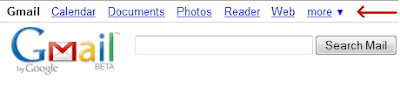
The best part, you don't need to do this setting for Calendar, Docs, Photos etc if you use the top navigation bar as shown below.

This setting is "HIGHLY RECOMMENDED" . (bold, underlined & italicised :) )
Happy Safe Browsing...

6 comments Saturday, July 12, 2008

New feature from google allows you to monitor and control login activity. Now you can see from where all you (or someone else) logged in and which IPs are online at this moment

You migh have accessed gmail from a cybercafe or a public internet terminal and forgot to log out. Now you can do a remote logout also.
“With this information, I can quickly verify that all the Gmail activity was indeed mine,” a Gmail developer at the official Gmail blog writes.

UPDATE: To know more about the IP from where your account was used, use IP2Locations tools such as http://rohit11.com/tools/ip/

1 comments Sunday, June 29, 2008


Few days ago an interesting attempt to phish for Google account credentials made it to my friend's inbox. As you may know, phishing emails are sent out by abusers to make the recipient in some way reply with their password or click through to enter their password, but the more official looking they are, the more easily they’re believed. This particular mail, shown in the screenshot, had the following attributes:


  • It was sent by “customer care”. OK, could be a lie.


  • It got his name right... might be just luck, as his name is included in his mail address.


  • It was sent with a layout that looked very official, and it even had an actual event from his calendar listed in the information (grayed out in the screenshot in the top right). Now this one was a bit more peculiar, because who else but Google would know his private calendar events?


The subject of the mail read “[Invitation] VERIFY YOUR ACCOUNT”, and the main content included this bit:


User Name, you are invited to VERIFY YOUR ACCOUNT (...)This Email is from Gmail Customer Care and we are sending it to every Gmail Email User Accounts Owner for safety. we are having congestions due to the anonymous registration of Gmail accounts so we are shutting down some Gmail accounts and your account was among those to be deleted.
We are sending you this email to so that you can verify and let us know if you still want to use this account. (...)You will have to confirm your E-mail by filling out your Login Information below after clicking the reply button, or your account will be suspended within 24 hours for security reasons.
* Username:
* Password:


It’s quite obvious Google’s not likely to send out such mails for real. You might have guessed by now how this was done, though: someone apparently set up a Google account with the first name “customer” and the surname “care” (the actual email address was customerservices[some-number]@googlemail.com). They then created an event in their calendar titled “VERIFY YOUR ACCOUNT” – instead of say, “Party Tonight” – with the event description being the text printed above! Finally, they added him as guest to that event, which caused Google to prepare and send the event invitation mail!


If you too ever receive a mail like this, here’s something you can do instead of actually replying: click the blue arrow to the top right of the Gmail message and pick “Report phishing”. A dialog will pop up explaining what phishing is, and it then says: “If you believe this message is a phishing attack, you can report it to our abuse team and help us thwart this attack and others like it.” Google notes though, “Reporting this message as an attack will send the entire message to our team for review.”


Be a safe netizen, REMEMBER:


  • Never ever give out your password on internet


  • Don't click any random link sent to you in emails


  • No provider will EVER delete your account if you do not send them any mail or verification


  • Report phishing if you get any such mail asking for password of orkut, yahoo or any other site.

15 comments Thursday, June 05, 2008

Google is working hard to make its sites available even to people on low bandwidth. Last they worked upon gmail & now its time for orkut.
They have reworked on the code so that if the pages are taking time to load, user will get a prompt to switch over to low-bandwidth version of the same.

Good to see the initiative, at times I'm sitting idle at airport on low speed data card connections. Thats the best time to contact friends on orkut and now it will be more easier :)

Source: orkut Blog: A faster, lighter version of orkut

0 comments Tuesday, January 22, 2008

Satya Paul's latest collection of sari is called "Oogle sari"

Real Good!

[Source]
Image: http://www.flickr.com/photo_zoom.gne?id=2211375189&size=o
News: http://seo-kolkata.blogspot.com/2008/01/google-in-fashion-or-fashion-with.html